Canon PRINT
Canon Inc.Tools
4.561.70K Reviews
- Version
- Varies With Device
- Installs
- 50.00M
- Age Rating
- Everyone
Screenshots
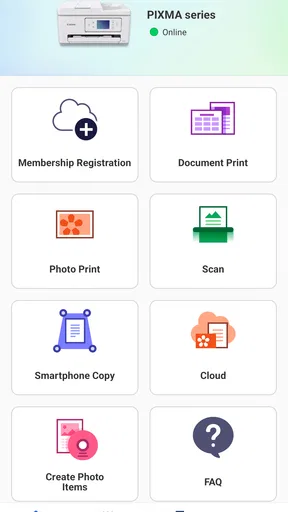
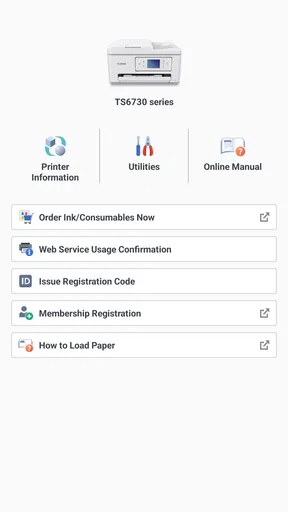
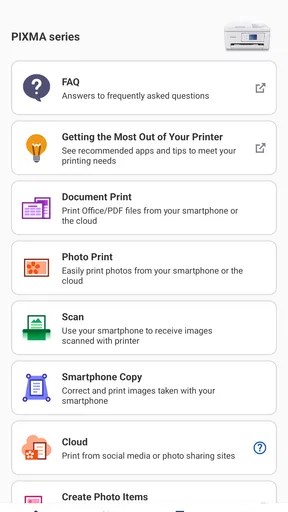
Our Review of Canon PRINT
 Analysis by Appyee
Printing from a phone sounds simple until you need to do it quickly. A document arrives in a chat, a photo is sitting in your camera roll, or a form needs a physical copy before you leave home. That is where Canon PRINT makes sense: it acts as the mobile companion for a Canon printer, putting the basic print workflow closer to the files you already keep on your phone.
I reviewed it as a practical tools app rather than as something I would open every day for entertainment. Its value depends heavily on one thing: whether you already use a compatible Canon printer. If you do, the app can remove several small annoyances between finding a file and getting it onto paper. If you do not, there is little reason to install it just because it is free.
Canon Inc. has kept the app focused on the printer relationship instead of trying to turn it into a general document-management service. That narrow purpose is also its main strength. The app is free, suitable for Everyone, and has built a substantial user base, with more than 50 million installs. Its average score sits at 4.5, which suggests that many printer owners find the core experience dependable enough for regular use.
Why mobile printing is the app’s real advantage
The most useful capability here is not simply pressing a print button. It is the ability to treat a phone as the starting point for a Canon printing task. Instead of moving a file to a computer, opening desktop software, and searching for the printer there, I can begin with the document or image already on my phone and work from that location.
That difference matters in ordinary situations. A school permission form may arrive as a PDF in a messaging app. A travel confirmation may be stored in cloud storage. A relative may ask for a printed photo while visiting. In each case, the phone is already where the content lives. Canon PRINT reduces the need to create an extra transfer step simply to reach a printer.
The app is best understood as a bridge between mobile content and Canon hardware. It does not replace the printer, improve poor paper handling, or make an unsuitable printer suddenly convenient. What it can do is make the handoff less dependent on a computer. The real benefit is fewer device changes, not a magical improvement in print quality.
I also like that this focus makes the app easier to understand than many all-purpose office apps. A general printing utility may try to support a wide range of brands and devices, but that broad compatibility can bring extra menus and more uncertainty during setup. Canon PRINT has a clearer reason to exist: connect the phone to a Canon printer and help complete the job.
What the focused design means for compatibility
The first question I would ask before downloading it is not whether the app is free. It is whether the printer is supported. A companion app is only useful when the phone and printer can communicate through the setup available in your home or office. If you are choosing a printer, I would check the exact Canon model and its mobile-printing support before assuming the app will cover it.
This is an important distinction from a universal printing tool. Canon PRINT is a better fit when the printer is already part of the Canon ecosystem. A broader alternative may be more practical in a mixed-brand household, a shared office, or a workplace where you regularly print to several manufacturers’ devices. In those situations, the convenience of a single brand-specific workflow may not outweigh the need for wider support.
The app’s Everyone age rating also makes it approachable for a household. A family member who is not comfortable with desktop printer software can usually understand the basic idea: choose content on the phone, select the printer, review the job, and send it. That does not eliminate every technical issue, but it puts the main task in a familiar mobile setting.
How I would use it in practice
My preferred workflow starts before opening the app. I first make sure the file is ready on the phone and that I know whether I need a document or an image print. This small habit helps because mobile printing is most frustrating when the source file is buried in a conversation, saved in an unclear folder, or still loading from cloud storage.
Once the content is ready, Canon PRINT becomes the place to establish the printer connection and send the job. The exact screens can vary with the Canon hardware and the type of content, so I would not treat every printer as identical. What remains consistent is the basic idea of selecting a nearby Canon device and preparing the print from the phone rather than from a computer.
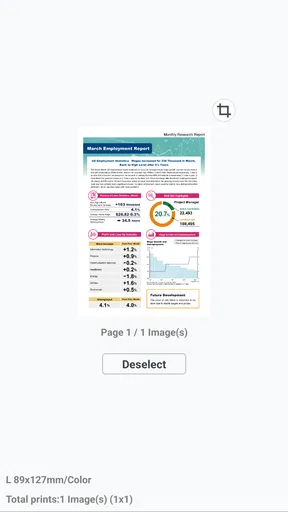
For a document, I would pause to inspect the page before sending it. A PDF that looks fine on a phone can still contain a page break, a blank page, or a layout that is awkward on paper. For a photo, I would check the crop and orientation instead of assuming the image will fill the paper exactly as it appears on the display. The app can simplify sending the job, but it cannot make a poorly prepared source look intentional.
That is one of the less obvious lessons from using a mobile printer companion: the convenience can make people print too quickly. Because the phone is always available, it is tempting to tap through without checking. I recommend treating the preview or print settings as a short quality-control step. A few seconds can prevent a wasted sheet, especially when the source is a screenshot or an image with an unusual shape.
A realistic home scenario
Imagine receiving a registration form while preparing for an appointment. The form is attached to an email on your phone, and the appointment is the next morning. With a computer-based workflow, I might need to forward the attachment, download it again, find the correct printer driver, and then deal with the printer from the desktop. With Canon PRINT, I can keep the process centered on the phone where the attachment already arrived.
I would open the attachment, save or share it in a way the phone can access, then use the Canon companion workflow to send it to the printer. Before confirming, I would check that the pages are complete and that the printer has the right paper. The app is most valuable in this moment because it removes the unnecessary “move it to another device” stage.
There is a practical trade-off, though. If the form requires editing, signing, or filling in fields, Canon PRINT is not the tool I would rely on for that part. I would prepare the document in an appropriate editor first, then use the Canon app for the final print step. Thinking of it as the last mile of the process keeps expectations realistic.
Photos are convenient, but preparation still matters
Printing a photo directly from a phone is another natural use. The image is already in the camera roll, so there is no need to export it to a laptop or desktop library. This is especially handy when I want a quick physical copy for a family member or a small keepsake rather than a carefully edited photo project.
I would still inspect the image closely. Phones often capture pictures in proportions that do not match the paper. Cropping can remove part of a face, cut off text in a screenshot, or leave a composition looking different from the original. The app is helpful because it brings the job into the mobile workflow, but the user still needs to make the creative decision about what should remain visible.
For important photographs, I would use a more deliberate editing and color-management process before printing. A dedicated photo workflow may offer better control for someone who cares about exact tones, borders, and repeatable results. Canon PRINT is more appealing for quick, personal prints than for a photographer who wants a carefully calibrated production process.
Small habits that make the experience smoother
The first useful habit is to separate connection problems from print problems. If the app cannot find the printer, I would check the phone and printer’s network situation before changing the document. If the printer appears but the result is wrong, I would then inspect paper, orientation, scaling, and the source file. Treating those as different stages prevents random troubleshooting.
The second is to prepare frequently used files in advance. If I know I will print a recurring form, label, or household checklist, I would keep a clean copy in an easy-to-reach location on the phone. The app can shorten the printing step, but it cannot compensate for poor file organization. The biggest time savings come when the content is already ready.
The third is to use the phone’s sharing and storage habits thoughtfully. A file in a messaging thread may be compressed, while a file in cloud storage may need to download before printing. For a document where readability matters, I would prefer the original file rather than a screenshot. That choice affects the result more than the fact that the job was sent from a phone.
A fourth tip is to avoid assuming that the last-used printer is the right printer. In a home with more than one Canon device, or in a shared environment, I would verify the selected device before confirming. Mobile interfaces encourage quick taps, and a short review of the destination is worthwhile when the printed material is private or the paper is limited.
Where the app saves time—and where it does not
Canon PRINT saves time mainly by removing the computer from simple jobs. It is not necessarily faster for every job. If I am already working on a long document on a desktop, the computer’s editing tools and print dialogue may be more efficient. Switching to a phone just to send that document would add friction rather than remove it.
The app also does not change the physical limits of printing. A slow printer remains slow, an empty paper tray still needs attention, and a device that is offline cannot receive a mobile job. This sounds obvious, but it is worth remembering because companion apps can make the digital part feel effortless while the mechanical part remains exactly the same.
In my experience, the best results come from matching the tool to the job. I would choose the phone for short documents, single images, forms, and content that arrived on mobile. I would stay on a computer for heavy editing, large batches, or work that depends on precise layout control.
The trade-offs I would consider before relying on it
The largest trade-off is brand dependence. Canon PRINT is attractive because it is tailored to Canon printers, but that same focus limits its usefulness outside that ecosystem. If your household printer changes brands, or if you frequently print at different locations, a broader mobile-printing option may be a better long-term habit.
Another point is that a companion app adds a layer between the source and the printer. When everything works, that layer is convenient. When something goes wrong, it becomes another place to diagnose the issue. I would not blame the app for every failed job: network conditions, printer status, paper settings, and the original file can all be responsible. Still, users who prefer the fewest possible software steps may find direct computer printing easier.
Mobile screens also make detailed review harder. A page may look readable on a phone but print with an unexpected break or scale. I would be especially careful with spreadsheets, forms, and web pages. If the printout matters, I would open the source in an app that handles its format properly rather than relying on a captured image.
Privacy is another reason to think about the workflow, even without turning the app into a document vault. I would avoid printing sensitive material while connected to a shared or unfamiliar printer, and I would confirm the destination before sending. The app’s convenience makes printing accessible, but it also makes an accidental tap easier when I am rushing.
Finally, people who rarely print may not gain much from installing a dedicated companion app. If you print once or twice a year and already have a reliable computer setup, the additional mobile workflow may not justify learning it. The strongest case is for people who print often enough to notice the repeated inconvenience of transferring files between devices.
Who benefits most from Canon PRINT?
I think the app is most useful for households with a compatible Canon printer and several people who use phones as their main computing devices. Parents can print school material, travelers can produce reservation documents, and relatives can make quick photo copies without asking someone to start a computer. The value grows when more of the household’s content arrives through mobile apps.
It is also a good match for small home offices where the printer is nearby but the work is not always done at a desk. A person may receive an invoice on a phone, take a picture of a receipt, or need a physical copy while moving around the house. The app supports that flexible pattern better than a workflow built around one fixed computer.
People who print photos casually may appreciate the direct path from camera roll to paper. I would recommend it for family snapshots, quick reference images, and simple physical reminders. I would not present it as a replacement for specialized photo software when the result needs exact color, careful retouching, or a controlled layout.
On the other hand, I would suggest skipping it if your printer is not Canon, if you need one app for many printer brands, or if nearly all your printing begins and ends on a computer. I would also look elsewhere if your main need is document editing, electronic signatures, scanning as a broader office workflow, or advanced publishing. Canon PRINT is strongest at the printing handoff, not at being an entire mobile office.
How it compares with common alternatives
Compared with a desktop printer utility, Canon PRINT feels more convenient when the file begins on a phone. A desktop tool remains stronger for long documents, detailed layout work, and users who already organize everything on a computer. Neither approach is universally better; the deciding factor is where the content starts and how much control the job requires.
Compared with a generic mobile printing app, Canon’s companion has the advantage of being centered on Canon hardware. That can make the choices feel more relevant and reduce the need to navigate support for unrelated brands. A universal option wins when flexibility matters more than a dedicated relationship with one printer maker.
Compared with simply sharing a file to another device, the app is more direct for quick jobs. The catch is that the printer still needs to be ready and compatible, and the source file still needs a quick inspection. In other words, the app removes a transfer step, but it does not remove the need for sensible preparation.
My recommendation after using it as a daily tool
Canon PRINT succeeds because it addresses a very specific annoyance: getting mobile content onto a Canon printer without detouring through a computer. That sounds modest, but it is genuinely useful when a form, photo, or short document arrives at the wrong time and the printer is already available.
I appreciate the focused design and the way it fits natural phone habits. I also think users should approach it with clear expectations. It is not a universal printer controller, a full document editor, or a substitute for careful print preparation. Its success depends on compatible Canon hardware, an accessible printer connection, and content that is ready to print.
Canon Inc.’s app has been available since July 21, 2013, and its long presence alongside a large community of users gives it the feel of an established companion rather than a novelty. With no purchase cost and an Everyone rating, it is easy to try when the printer relationship is already in place. I would install it for a Canon-owning household that regularly receives files on phones, while steering mixed-brand users and advanced document creators toward broader or more specialized tools.
My final view is straightforward: Canon PRINT is worth using when the phone is where your work begins and a Canon printer is where it needs to end. It will not solve every printing problem, but for the right everyday scenario, it removes exactly the unnecessary step most people want gone.
Verdict
Strengths of Canon PRINT
- Easy wireless printing and scanning from Android and iOS devices.
- Supports many Canon printers, including select older models.
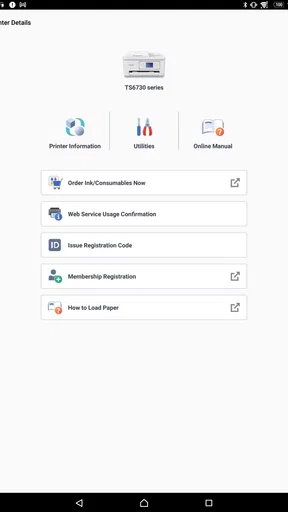
- Useful ink levels and printer status monitoring in the app.
- Simple photo printing with basic layout and paper-size options.
- Can scan documents directly to a phone for quick sharing.
Limitations of Canon PRINT
- Some advanced printer settings still require Canon’s desktop software.
- Compatibility varies by printer model and may need firmware updates.
- Initial Wi-Fi setup can be confusing on certain home networks.
- Photo-editing tools are limited compared with dedicated editing apps.
- Performance may slow when handling large, high-resolution scans.
Other Releases by Canon Inc.
View All
Canon Print Service
Tools3.2
Similar Picks in This Category
View All
Google LLC4.0

Gboard - the Google Keyboard
Google LLC4.5

Google Play services
Google LLC4.3

Google Play Store
Google LLC4.9

Files by Google
Google LLC4.5

SHAREit: Transfer, Share Files
Smart Media4U Technology Pte.Ltd.4.3
Frequently Asked Questions
What is Canon PRINT, and what can I use it for?
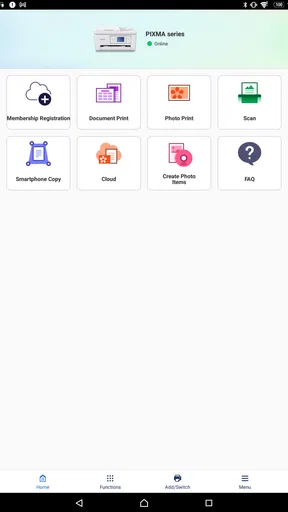
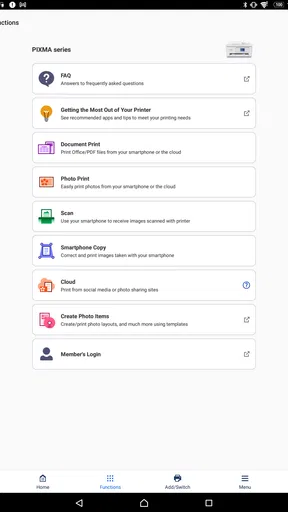
Canon PRINT is Canon’s mobile companion app for compatible PIXMA, MAXIFY, SELPHY, and some imageCLASS printers. After connecting your phone or tablet to the printer, you can print photos, documents, web pages, and files, depending on the printer model. The app may also provide scanning, ink or toner information, printer setup, cloud-service access, and basic maintenance tools.
Is Canon PRINT compatible with my printer and smartphone?
Compatibility depends on both your printer model and the operating system of your mobile device. Most recent Canon wireless printers work with Canon PRINT, but features can vary between PIXMA, MAXIFY, SELPHY, and other supported series. Before downloading, check the app listing and Canon’s official compatibility information, and make sure your Android or iOS version meets the current requirements.
How do I connect Canon PRINT to my printer?
Usually, your phone and printer must be connected to the same Wi-Fi network. Open Canon PRINT, allow the requested permissions, and follow the guided setup to locate and register the printer. Some compatible models support wireless direct connection, Bluetooth-assisted setup, or QR-code pairing. If the printer is not detected, verify Wi-Fi settings, restart both devices, and confirm that wireless printing is enabled.
Can Canon PRINT scan documents and print from cloud storage?
On supported multifunction printers, Canon PRINT can scan documents or photos and save the results to your mobile device. It may also let you print files and images stored in services such as Google Drive, Dropbox, or other supported cloud platforms, although availability can differ by region, operating system, and printer model. Some advanced scanning and cloud functions may require additional permissions or account sign-in.
Is Canon PRINT free, and are there any additional costs?
Canon PRINT is generally available as a free download, but using it does not make printing or scanning cost-free. You still need a compatible Canon printer, paper, and sufficient ink or toner. Certain cloud services may require their own subscriptions, while mobile data charges can apply if you print through a connection outside your normal Wi-Fi network. Always review permissions and in-app notices before use.
